
Time is the most valuable thing we have, especially when you’re busy, and waiting in long lines at an SSS branch can eat up your whole day.
That’s why SSS introduced the online appointment system, so you can book your visit easily. The best part is that you can choose your own branch, date, and time, all from your phone or computer. However, I’ve found that many members still run into small problems, like booking too late, choosing the wrong branch, or forgetting their confirmation.
But you don’t need to worry anymore. I’ve written this guide to show you how to book your SSS appointment step by step, what rules to follow, and what to bring. You’ll also learn how to reschedule or cancel and how to fix common issues, so your visit goes smoothly. Let’s get started!
What Is the SSS Online Appointment and How Does It Work?
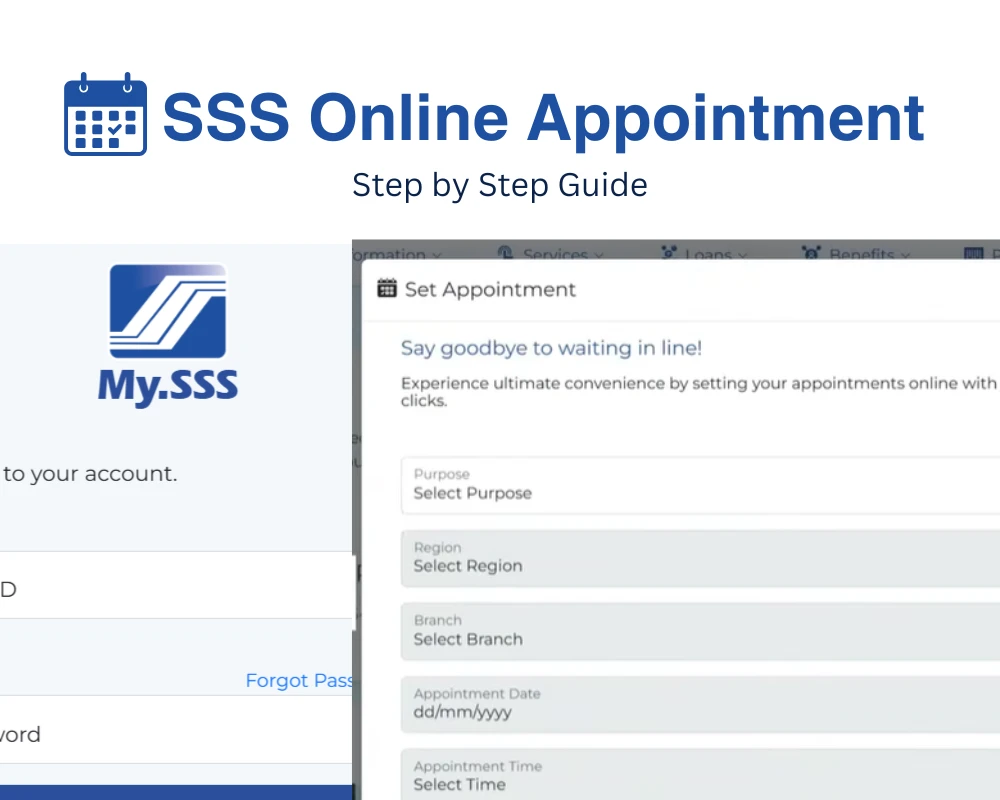
The SSS online appointment is a feature inside your My.SSS account that lets you reserve a schedule at your chosen SSS branch for transactions that need an in-person visit. You pick the branch, date, and time, and SSS sends you a confirmation.
It works like this:
- You log in to My.SSS, choose the purpose of your visit, select a branch and schedule, and submit.
- On your appointment day, you present your confirmation at the branch.
- Branches also set up special lanes for members with online appointments.
Who Can Book an SSS Appointment?
Any SSS member with a registered My.SSS account can book an online appointment. If you don’t have an account yet, register first (you can read my complete guide on SSS Online Registration).
You can book an appointment for the following transactions:
- Registration and coverage
- Contributions
- Loans
- Benefits
- UMID application
- Concerns and feedback, such as disbursement concerns, contested loans, and pension loan issues
SSS may also add other services in the future, so check the appointment page for the latest list.
How to Schedule an SSS Online Appointment: Step by Step
Follow these steps carefully to book your appointment without any hassle:
Step 1: Log in to your My.SSS account.
Go to the official SSS member portal and enter your User ID and password.
Step 2: Click “Set Appointment.”
You’ll find it in the Quick Links menu after you log in.
Step 3: Choose your purpose.
Select the transaction you need, such as a loan, benefit, or UMID application.
Step 4: Select your branch and schedule.
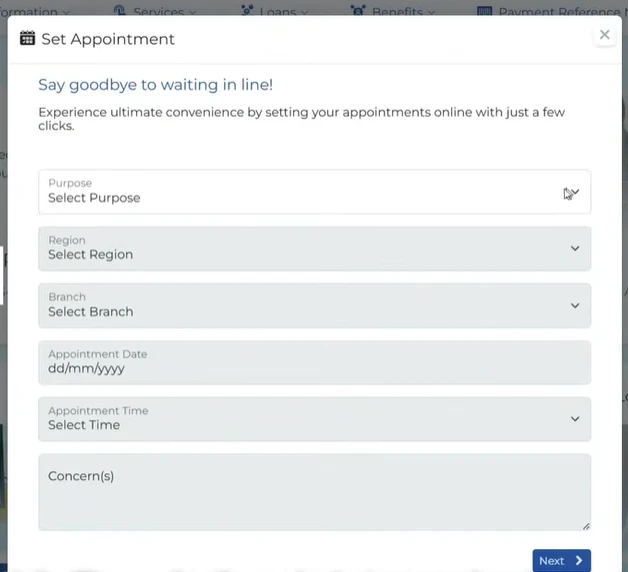
Choose your Region, Branch, Appointment Date, and Appointment Time. You can also add any concerns you have.
Step 5: Review your details.
Make sure everything is correct, then click Next.
Step 6: Click “Set Appointment.”
This finalizes your booking.
Step 7: Save your confirmation.
A confirmation message with your transaction number will appear on the screen. You should also receive an email and a notification in your My.SSS inbox. Take a screenshot or print it.
Pro Tip: Check your My.SSS inbox and your email’s Spam folder after booking, just to be sure the confirmation arrived.
Booking Rules You Should Know
SSS has a few guidelines for online appointments. Knowing them will save you from failed bookings:
- Book at least a day before. Your appointment must be set a day before the date you want to visit.
- One appointment per transaction per date. You can’t book multiple appointments for the same purpose on the same day.
- Use an available slot only. You can only pick dates, times, and branches that are open in the system.
- You must be registered. Only members with a My.SSS account can book online.
Requirements to Bring on Your SSS Appointment Day
Don’t let a missing document waste your booking. Bring these with you:
- Your appointment confirmation or transaction number (printed or screenshot)
- Valid government-issued ID
- Your SS number or UMID, if you have one
- Supporting documents for your transaction. These depend on what you’re filing, such as loan, benefit, or UMID requirements
Since the documents differ per transaction, check the official SSS website for the exact list before your visit.
Tips for a Smooth SSS Appointment
A few simple habits can make your visit faster:
- Arrive early. Come 20–30 minutes before your schedule.
- Bring photocopies. Some branches may ask for extra copies of your IDs or forms.
- Double-check your branch and time. Booking the wrong branch is a common mistake.
- Keep your contact details updated. This way you won’t miss any notices from SSS.
- Be polite and patient. It helps everyone, including the staff.
How to Reschedule or Cancel an SSS Appointment
Plans change, and that’s okay. If you can’t make it to your appointment, it’s best to cancel or rebook instead of just not showing up.
- Log in to your My.SSS account.
- Check your scheduled appointment in the appointment section.
- Cancel it if the option is available, then set a new appointment with your preferred date and time.
Because SSS doesn’t allow duplicate appointments for the same purpose on the same date, you may need to cancel the old booking first. If you can’t find the option, contact SSS at 1455 for help.
Common Issues and Fixes
No available slots?
Try another branch, pick a different date, or check again later. Slots can open up as others cancel.
Didn’t receive the confirmation email?
Check your Spam or Junk folder, then look in your My.SSS inbox. If it’s still missing, log back in and check that the appointment was actually saved.
Can’t log in to My.SSS?
Use the “Forgot User ID” or “Forgot Password” option on the login page.
Website not loading or timing out?
Try a different browser, clear your cache, or log in early in the morning or late at night when there’s less traffic.
Booked the wrong details?
Cancel the appointment and book a new one with the correct information.
FAQs
Q1: Is the SSS online appointment free?
Yes. Booking an appointment through My.SSS doesn’t cost anything.
Q2: Can I walk in without an appointment?
Some branches may still assist walk-ins, but online appointment holders are given priority. It’s best to book ahead.
Q3: Can I book an appointment for someone else?
The appointment is made through the member’s own My.SSS account, so it’s best for each member to book their own schedule.
Q4: Can I book on the same day?
No. Appointments must be set a day before your visit.
Q5: Can I book more than one appointment?
You can book for different transactions, but not multiple appointments for the same purpose on the same date.
Q6: Do I need to register for My.SSS first?
Yes. You need a registered My.SSS account to set an appointment online.
Conclusion
That’s it. Booking an SSS online appointment is quick, free, and can save you hours of waiting. Just log in to My.SSS, choose your transaction, pick your branch and schedule, and save your confirmation. Follow the booking rules, bring the right documents, and your visit should go smoothly.
If you haven’t created your My.SSS account yet, now’s a good time to do it, so you’re ready the next time you need to visit a branch.
1 thought on “SSS Online Appointment: Step-by-Step Booking Guide 2026”